We're excited to share our GoPilot AI tools with you!
'GoPilot' AI tools are available by request, simply contact helpdesk@goreport.com to get access.
AI Tool Overview
Accessing the AI Tools
Once we have added the tools to your account, you will need to log out and back in again to see them. Once you’re logged back in, you will see three new icons under each text field.
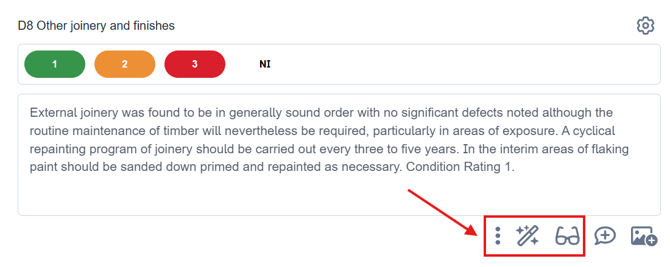
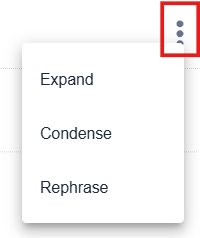
The first new option you'll see is GoPilot Rephrasing. GoPilot Rephrasing allows you to access powerful options to expand, condense, or rephrase your text. Click the three vertical dots to see your choices.
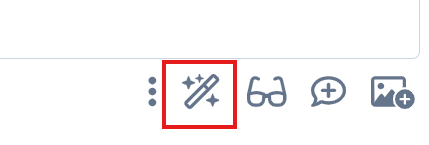
Magic Wand
The second tool in the list is the Magic Wand tool. The Magic Wand tool allows you to instantly check & rephrase your text with one click. Click the wand icon to use this tool.
When you choose either the GoPilot Rephrasing or the Magic Wand Tools, you’ll enter an intuitive editing screen where you can review changes, and tweak them before clicking Apply to add them to your report.
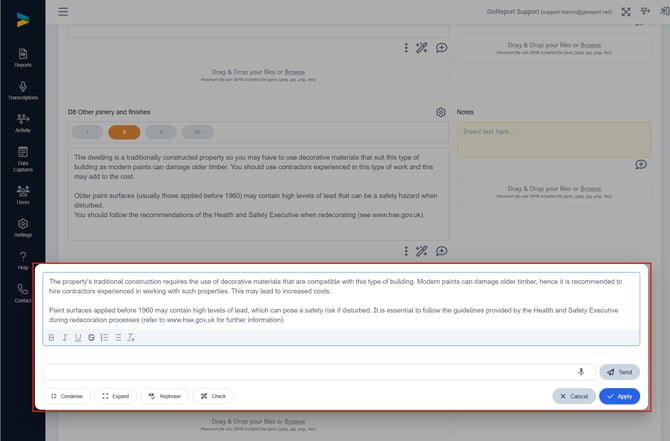
Note: The GoPilot Rephrasing and Magic Wand tools will rephrase all of the content in the section you selected, which includes your standard phrases added in via the 'Add Response' button. If you do not wish for your standard phrases to be rephrased, we would suggest adding these in after you've used the rephrasing tools.
Check Tool
Our Check Tool allows you to to correct any spelling and grammar mistakes:
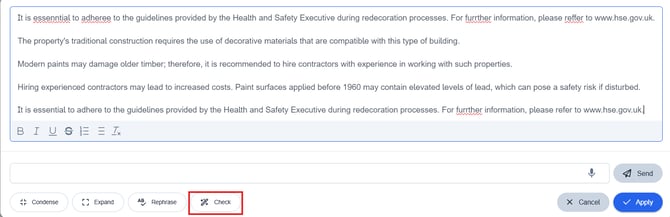
Once you've hit 'Apply', your changes will be saved automatically.
Chat Tool
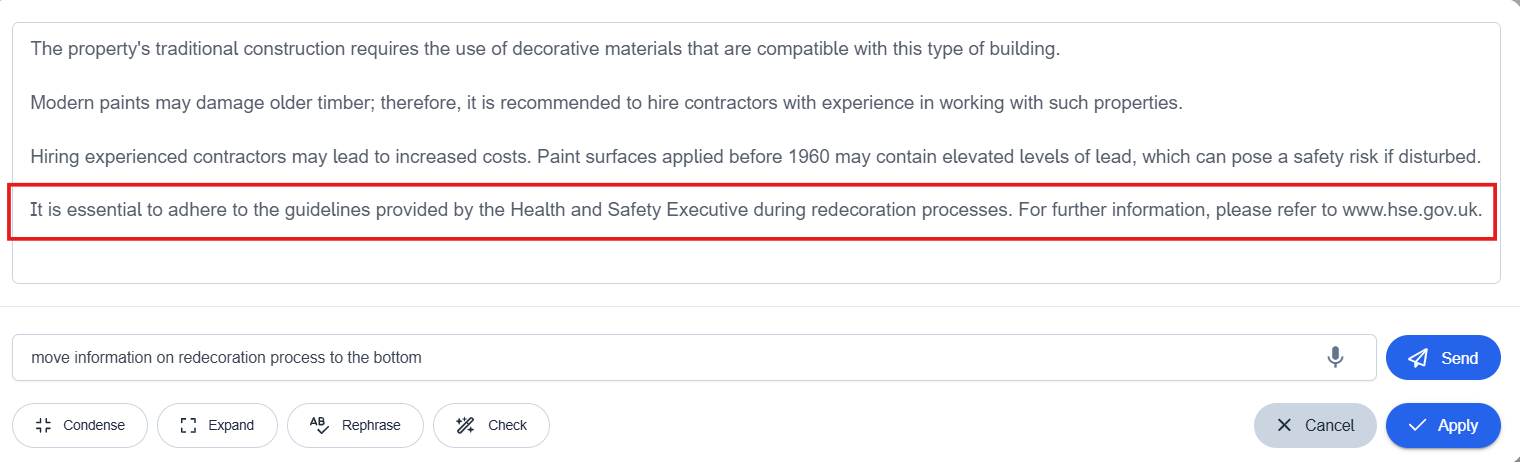
Our Chat Tool lets you adjust layout, add, or remove sentences. Simply type in your command and click the Send button to see the changes, and then click Apply to add them to your report.
Enter the command and press 'Send':
The adjustment will appear in the text, click 'Apply' when you're happy with it:
Proofreading
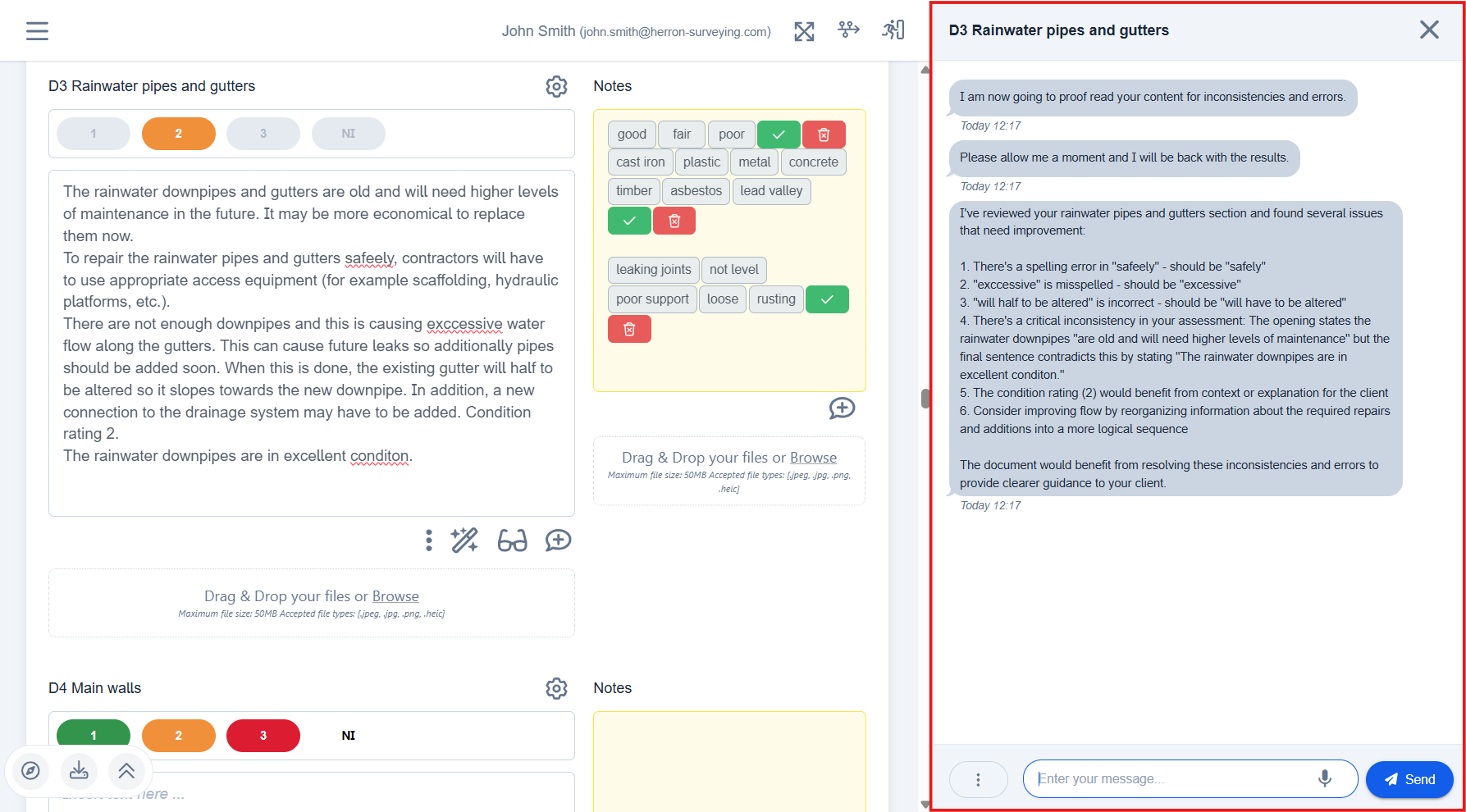
The Proofreading tool gives you the ability to proofread a specific section for spelling, grammar mistakes, and inconsistencies throughout the text.
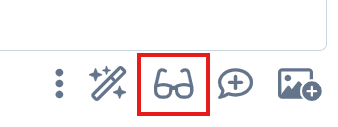
Clicking the GoPilot Proofreading icon will open a sidebar, and the field will be checked for any spelling or grammar mistakes. Any issues will be highlighted within the field highlighted in red below.
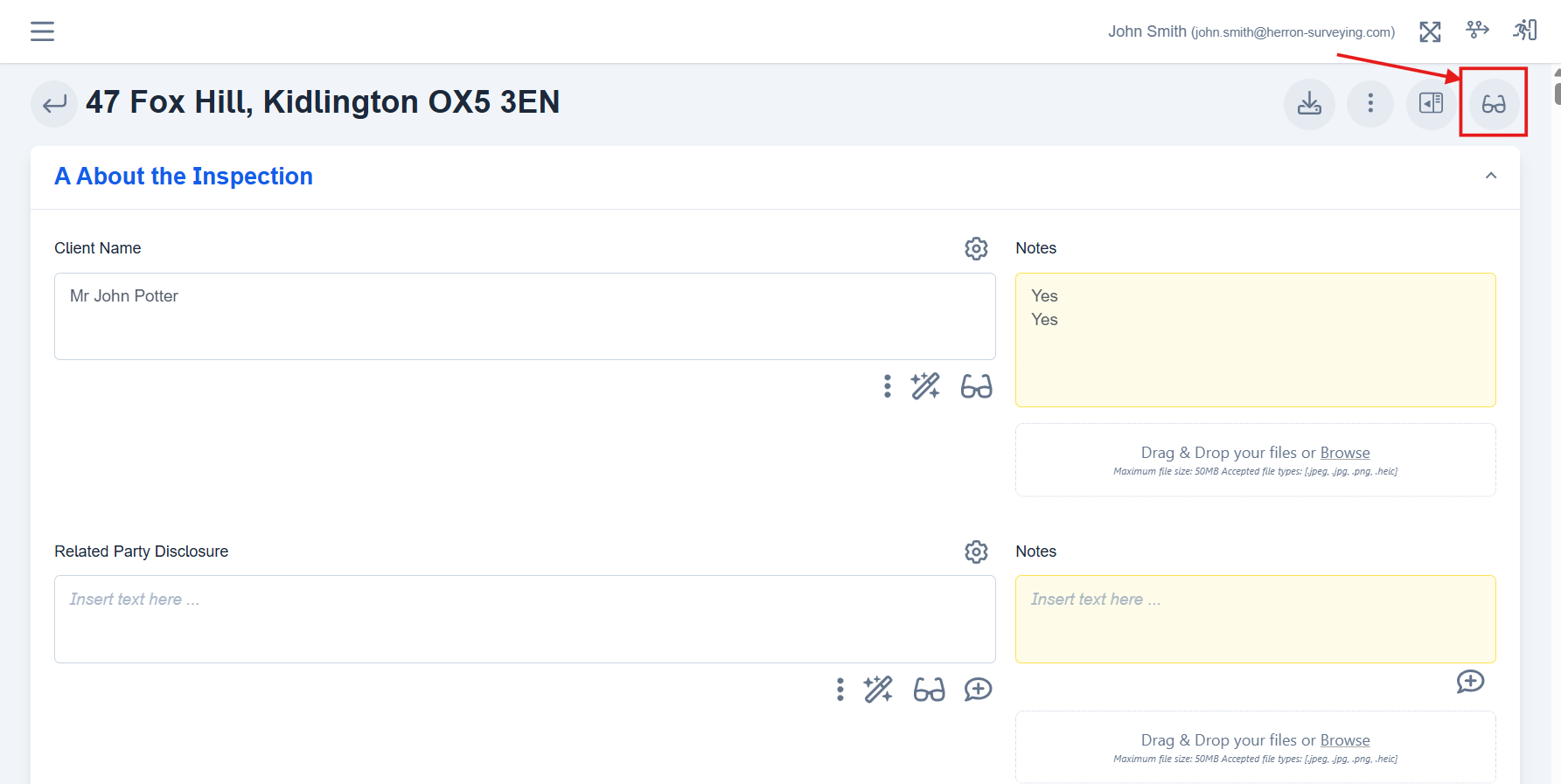
Want to proofread the entire report? Simply click the GoPilot Proofreading icon at the top of the report to do so!
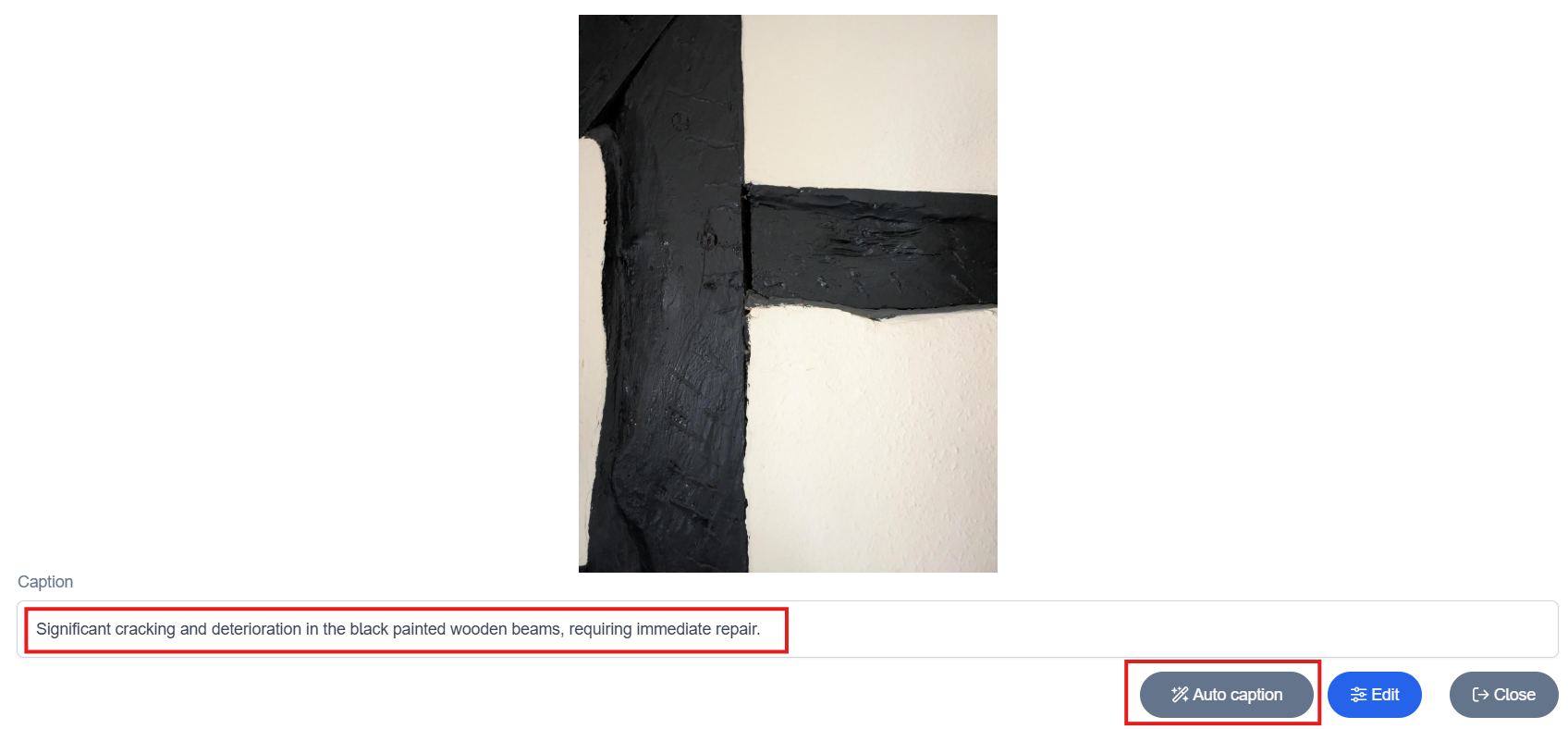
GoPilot Auto Captioning
Outside of our Rephrasing, Magic Wand and Proofreading tools, our GoPilot Auto Captioning is also available for you to use; you'll just need to click into a photo to add a caption, then choose the 'Auto caption' button to generate your caption.
GoPilot Customisation
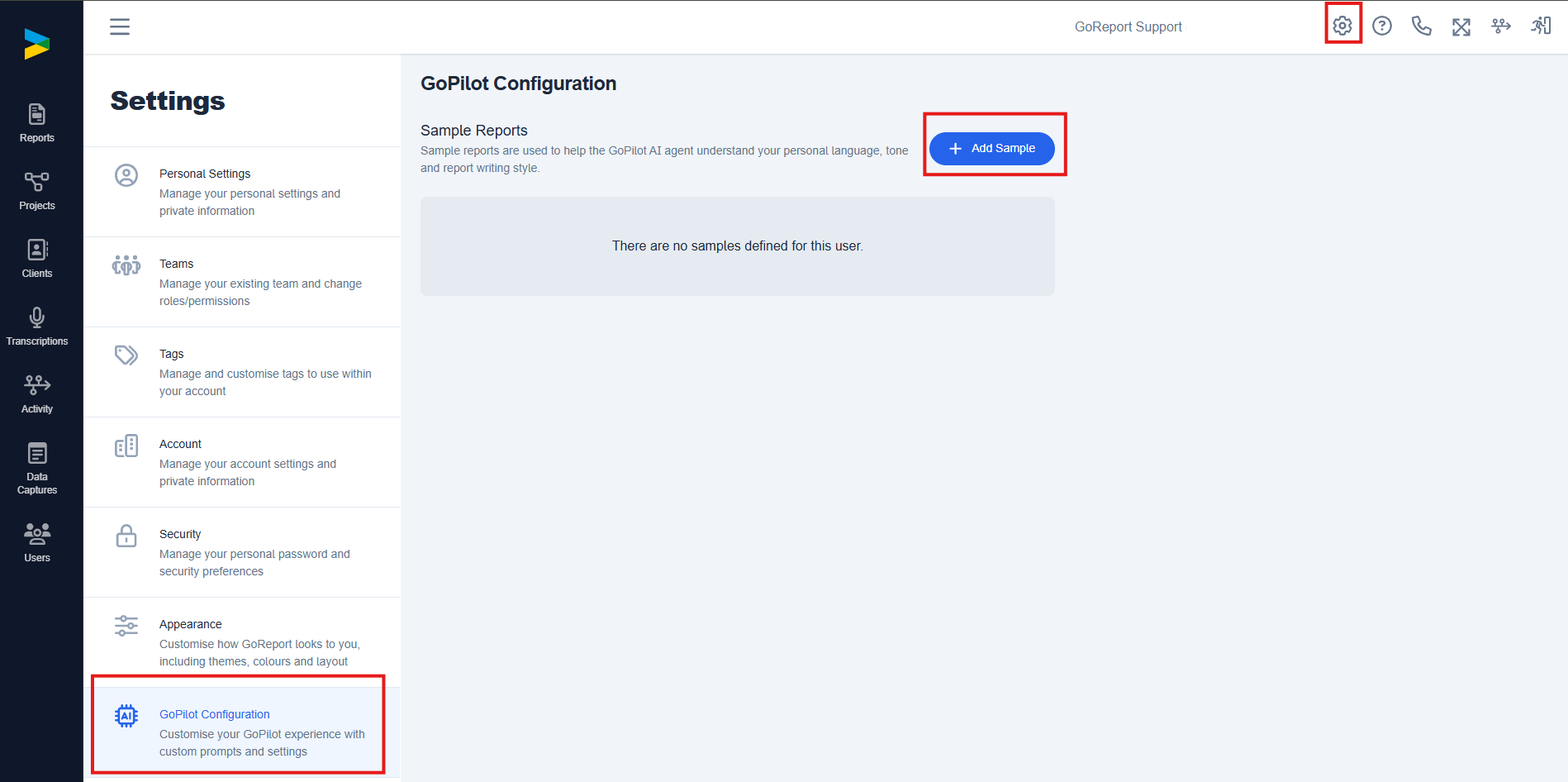
GoPilot Customisation this tool allows you to upload 5 examples of reports so that the tool can analyse the reports to find your own personal tone and writing style. The tool will then use these examples to offer you more appropriate rephrasing options in your reports.
To get started with this simply go to 'Settings' then 'GoPilot Configuration' and upload your preferred reports.
The best way to get used to these new tools is to use them, if you're unsure about using these tools, please feel free to create a test report and work with the AI tools there to get a good idea of how you can integrate this into your workflow.
Please note that some features may incur fees in the future, we will alert you to any changes to pricing prior to this time.
Your Feedback Matters
We're continually working to improve our services based on our customers needs and expectations; as such, we really appreciate any feedback you may have regarding this new product. If you have feedback for us, please feel free to send it through to helpdesk@goreport.com. If we need any clarification, or specific feedback regarding this product from you, we'll be in contact with you directly.