IMPORTANT: We are pleased to announce that the Mobile Portal will soon be moving to the Google Play Store! If you part of the beta group that are using the current version of the Mobile Portal, please get in touch with GoReport Support at helpdesk@goreport.com to learn what you need to do next.
Please do not delete the Mobile portal app without uploading any reports you've been working on.
We're excited to present GoReport's new cross-platform application, the GoReport Mobile Portal! This article serves as an introduction to the newest GoReport platform, and should be read before you use the new app on site. If you have any further questions about the Mobile Portal after reviewing the content of this article, please reach out to our Support Team at service-desk@goreport.com directly for assistance.
Mobile Portal Overview:
What is the GoReport Mobile Portal, and how do I get access?
Installing the GoReport Mobile Portal
What is the Mobile Portal, and how do I get access to it?
The GoReport Mobile Portal is a browser hosted cross-platform application, which means it's been designed to work on different devices and systems via a single application. Currently, if you've been granted access to the Mobile Portal, you can access it on any of the following operating systems;
- Android
- iOS
- MAC
- Windows
If you'd like to see if your account has been optimised, and is ready for the GoReport Mobile Portal, please reach out to our Support Team for further information.
Installing the GoReport Mobile Portal
Once you have been passed your download link for the GoReport Mobile Portal by the Support Team, you will be able to paste it into your web browser, where you will then be greeted with this page;
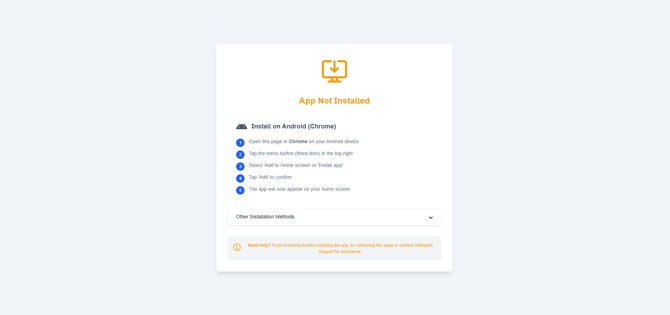
This page will explain how to download the GoReport Mobile Portal onto any compatible device.
To see the download instructions for all compatible devices and operating systems, please click the options highlighted below to bring up more installation methods in the drop down menu;
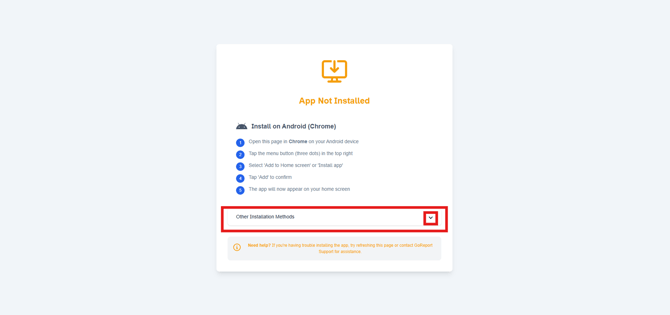
Note: When you are downloading the GoReport Mobile Portal, we would suggest that you use Google Chrome if possible as GoReport has been optimised for Google Chrome.
Important things to note before you get started:
If you already have access to the GoReport Mobile Portal, there are a few important things to note before you get started.
Important: Please do not delete the app or your browsing history. You may lose any reports you have not uploaded in your Local Reports list if you do so.
Please contact the Support Team if you are having an issue with the GoReport Mobile Portal before attempting to delete the app or your browsing data.
1. Keeping your reports safe
To ensure that you do not lose any of your report data, we would urge you to never delete the app, unless you have been instructed to do so by the Support Team. If you do delete the app, it is unlikely that we will be able to recover your reports as they were hosted by your device, and not the GoReport server prior to being uploaded.
Please ensure you have uploaded your reports before deleting your browsing history. Should you delete your browsing history, any reports you have not uploaded will not be recoverable due to the way your data is stored via your internet browser.
If you are having an issue with the Mobile Portal, please contact our Support Team before you delete the app, or your browsing data.
Note: We suggest that you do not share login details between team members where possible as this can impact how data is saved within the GoReport Mobile app.
2. Syncing and the Support Page
-
Syncing
Once you have logged into the GoReport Mobile Portal for the first time, a prompt will appear asking you to sync your device;
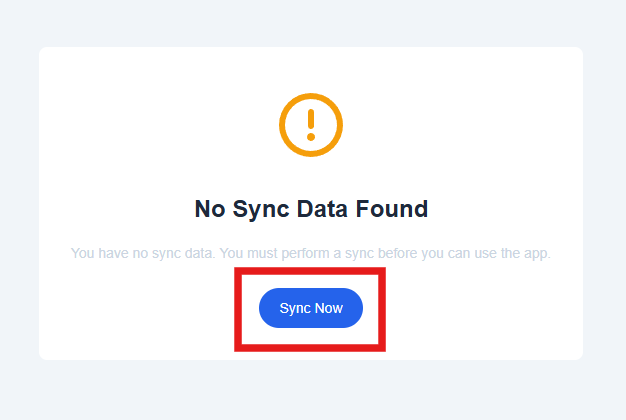
Once you've tapped 'Sync now' the GoReport Mobile Portal will sync itself to our servers, and you will have access to your latest data captures, and any active reports;
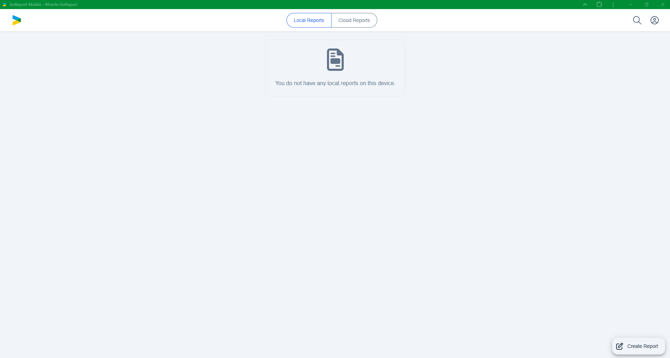
Tip: Once this first sync has been performed, we suggest that you perform a new sync before you go on site. You will only be able to perform a sync when you are connected to a stable internet connection.
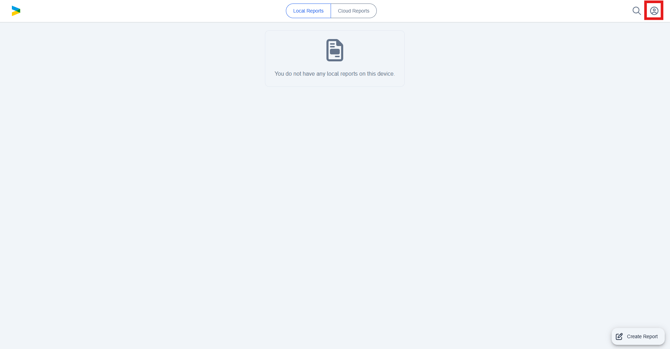
To Sync your app, please tap into your profile icon in the top right hand corner of your screen;
The select 'Sync' from the list;
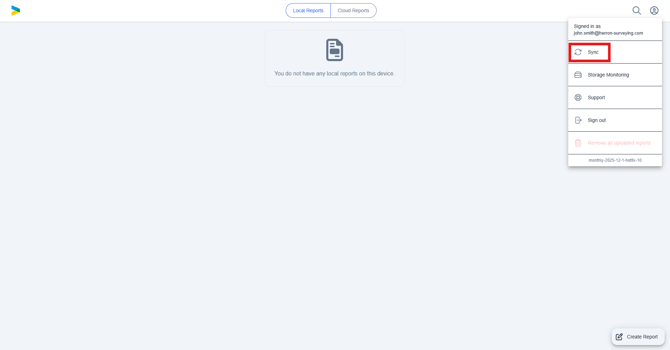
If successful, you will see the message 'Sync Complete' and you will be returned to your Local Reports List.
Note: You may be asked to sign in again if it's been a while since you last used the app. If you have issues syncing, please reach out to our Support Team for assistance.
- Support Page
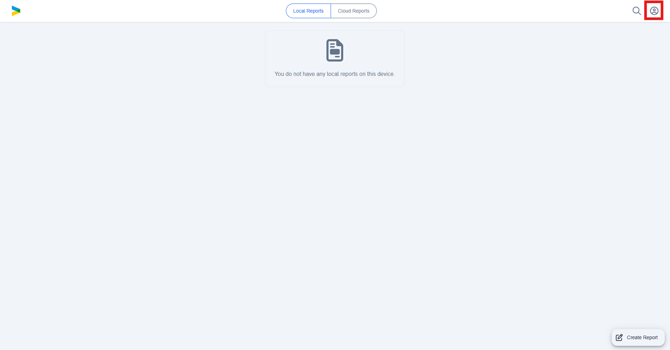
If you have an issue locating a report on your device, the Support Team may ask you to tap into the Support Page on your app. To view your Support Page, please tap into your profile icon in the top right hand corner of your screen;
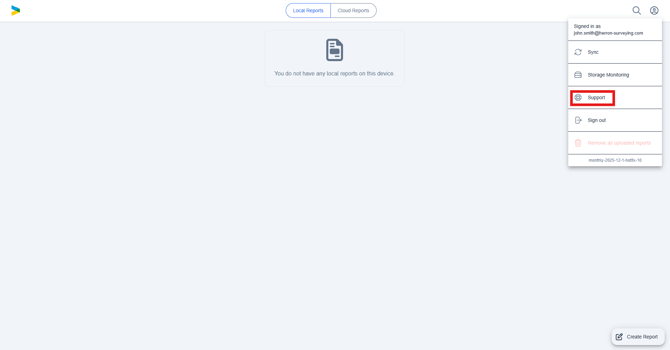
Then select 'Support Page' from the list;
Once you've tapped into this page, it should look something like this;
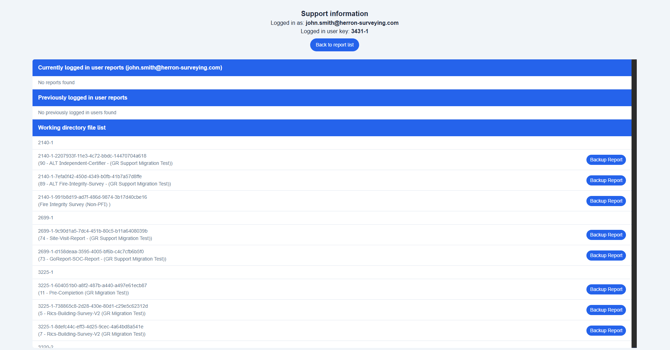
Note: If you cannot locate a report, and you're confident it was previously on your device, please call our Support Team. They will help you to navigate to this page to troubleshoot your issue.
3. Current Limitations
At present, the GoReport Mobile Portal doesn't support the following features;
- Quick Navigation
- Quick Camera
- Smart Pins
We understand that some of our clients may be reliant on these features, which is why we are working hard to implement them within the GoReport Mobile Portal in the future. In the meantime, please feel free to reach out to our Support Team should you require any clarification as to why these features are not available currently.