![lg transp-1.png]](https://knowledge.goreport.com/hs-fs/hubfs/lg%20transp-1.png?height=50&name=lg%20transp-1.png)
Note: This guide explains how to import data into your Macro from your reports. As every Macro relates to a specific GoReport template, ensure you have the correct Master Macro available on your desktop/laptop computer before you begin the process.
Step 1: Create a New Folder and Copy Your Macro
-
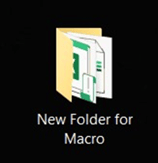
Create a new folder on your computer.
Example: New Folder for Macro.
-
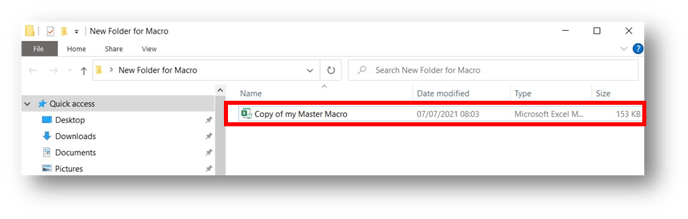
Copy your Master Macro (this should be stored in a separate location on your computer) and paste a copy into the new blank folder you’ve created.
💡 Tip: Always work from a copy of your Master Macro. Keep the original file unchanged.
Step 2: Export Data from the GoReport Web Portal
-
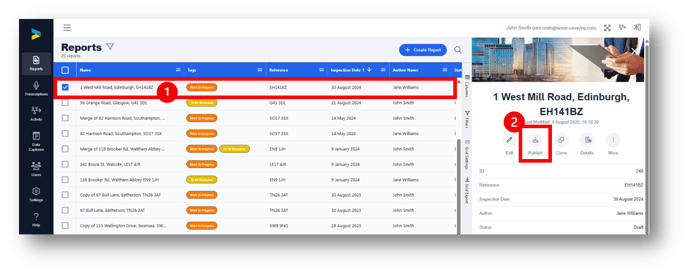
Log in to the GoReport Web Portal and find the report you want to export. Select the report and click the Publish button in the side bar.
-
From the Publish screen select Grouped Excel.
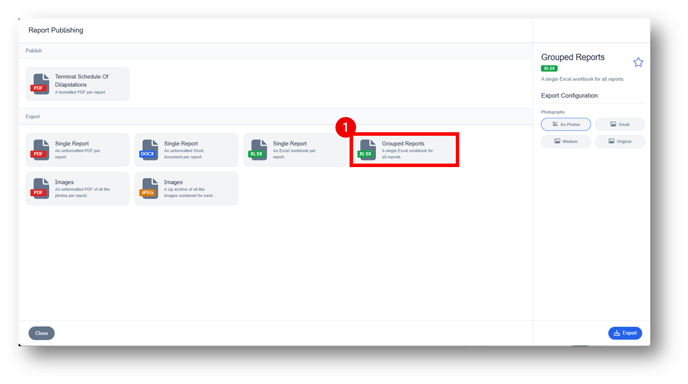
Note: If your Macro is designed to include links to photographs, you can choose which size of photos are included on the export.
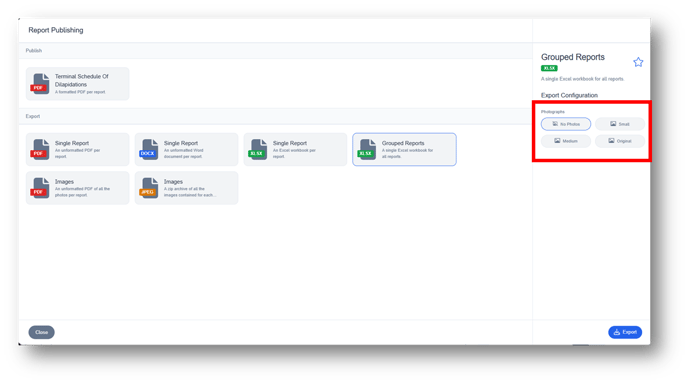
-
Click Export.
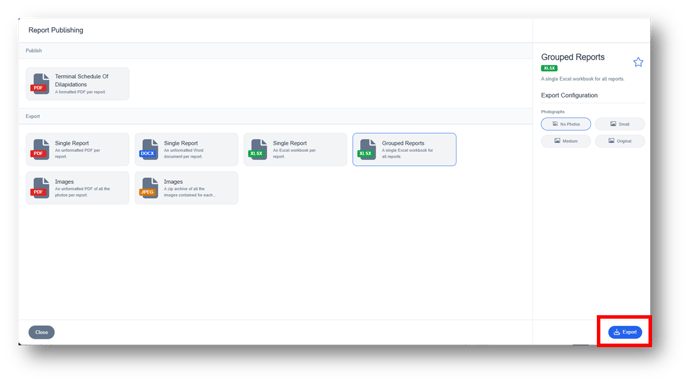
-
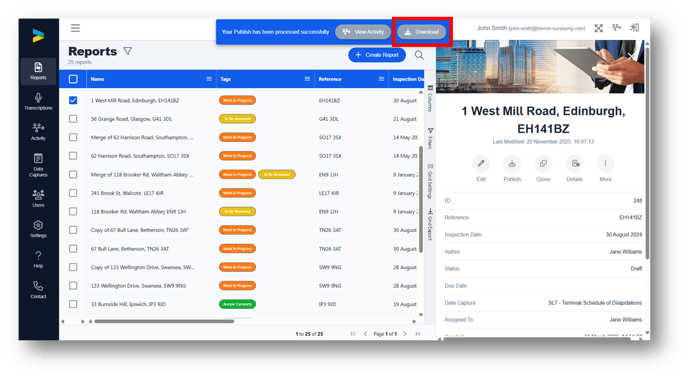
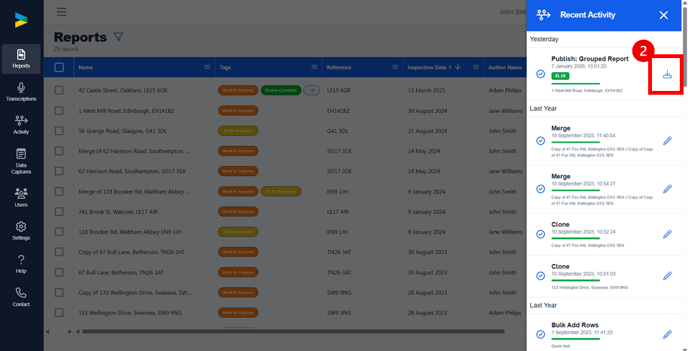
When the export is ready, click the Download button.
- You can also download the file from the Recent Activity Tab.
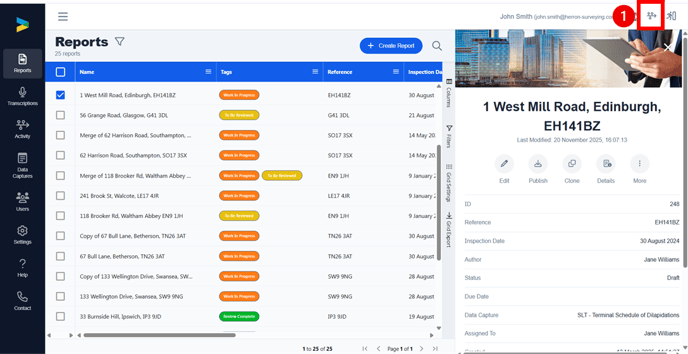
-
Once downloaded, move a copy of the GoReport exported file or folder into the same folder you created earlier (the one containing your copied Master Macro).
Important: The exported data and the copy of your Master Macro must be stored in the same folder for the Macro to work correctly.

Note: If your export includes photographs, they will download together in a zipped folder. Unzip the contents and place them into the new folder created in Step 1, which contains the copy of your Master Macro.
-
Both files will be 'blocked' and need to be unblocked before you can use them.
Important: If you don't unblock the files the macro won't work.
-
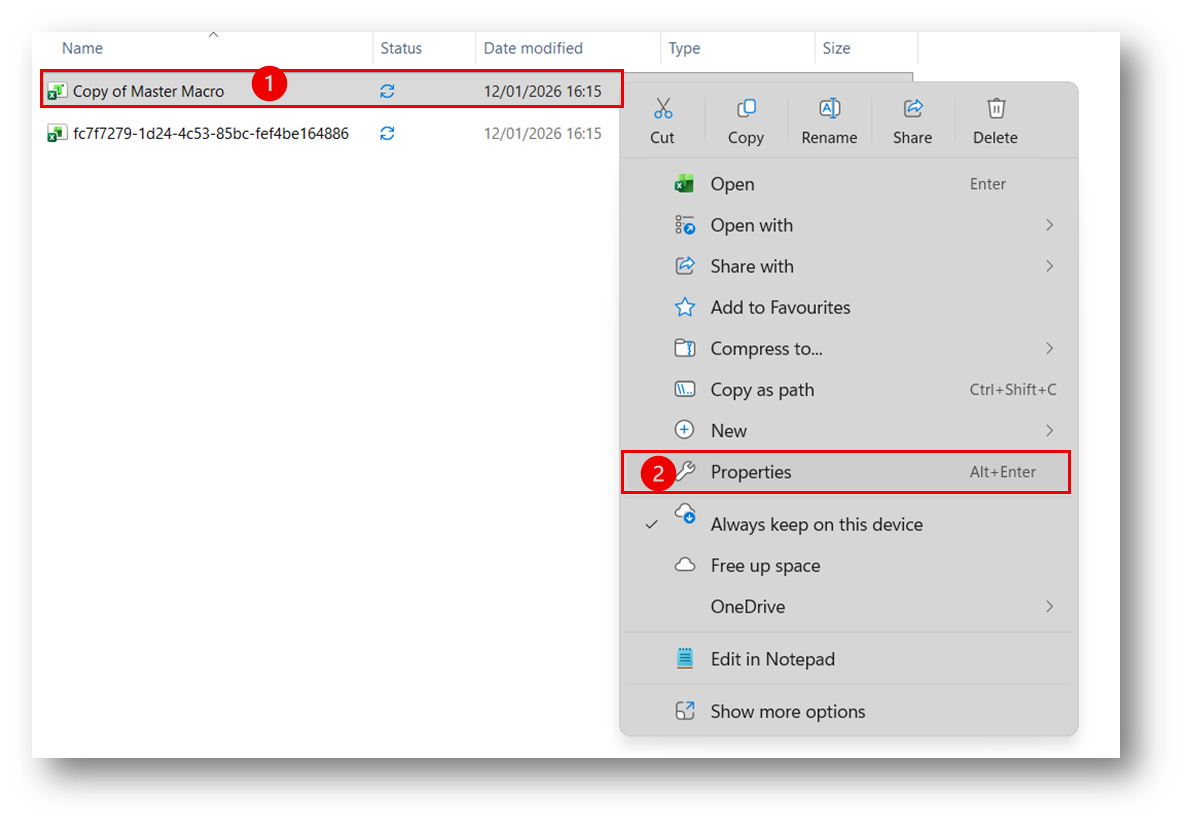
Right click on the file and select Properties.
-
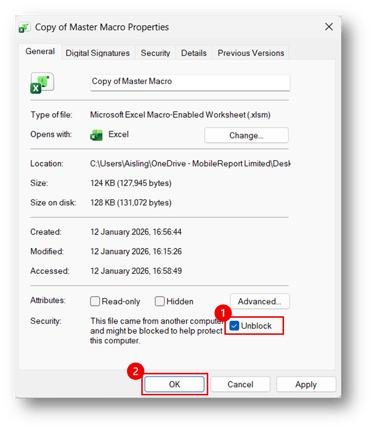
Tick the Unblock box as shown below, and click OK.
-
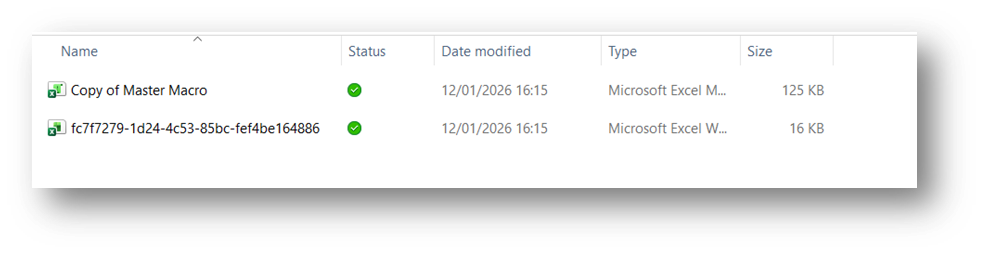
Repeat this step for both documents in the folder.
Step 3: Importing Data into the Macro
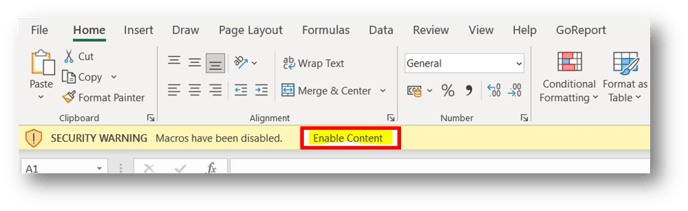
- Open the copy of the Master Macro you placed into the new folder you created at the start of the process. You might see the following ‘Security Warning’ along the top of the Excel document. Select Enable Content.
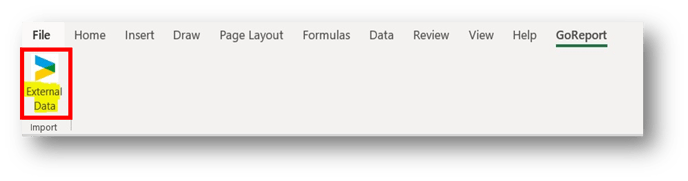
- Select the GoReport tab located along the top of the screen.

- Click External Data as shown below.
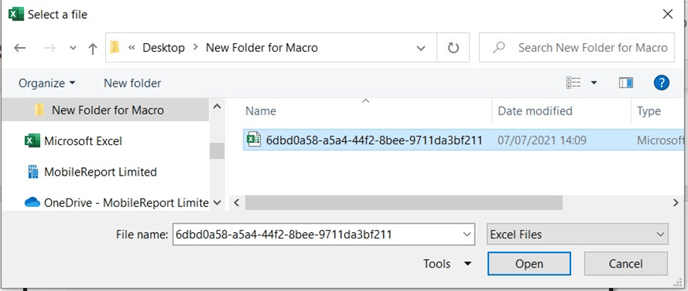
- A dialogue box will open for you to select a file. Locate the folder you have created that contains the copy of your Master Macro and the exported Excel from the GoReport Web Portal. Click the exported Excel and select ‘Open’.
The excel data will then import into the Macro, causing the Macro to ‘run’. You will then see the data displayed as expected within the Macro.
Tip: Repeat the above process, if you want to import a new export from the Web Portal
Key Points
1. Always copy your Master Macro, so the original remains unchanged.
2. Make sure you are using the correct Macro for your template. Macros are only designed for
individual templates.
Future Template Changes: If your Macro is designed for a bespoke template and the bespoke template undergoes structural changes, the Macro might need updated too.